Blender UV Unwrapping Complete Beginner Guide
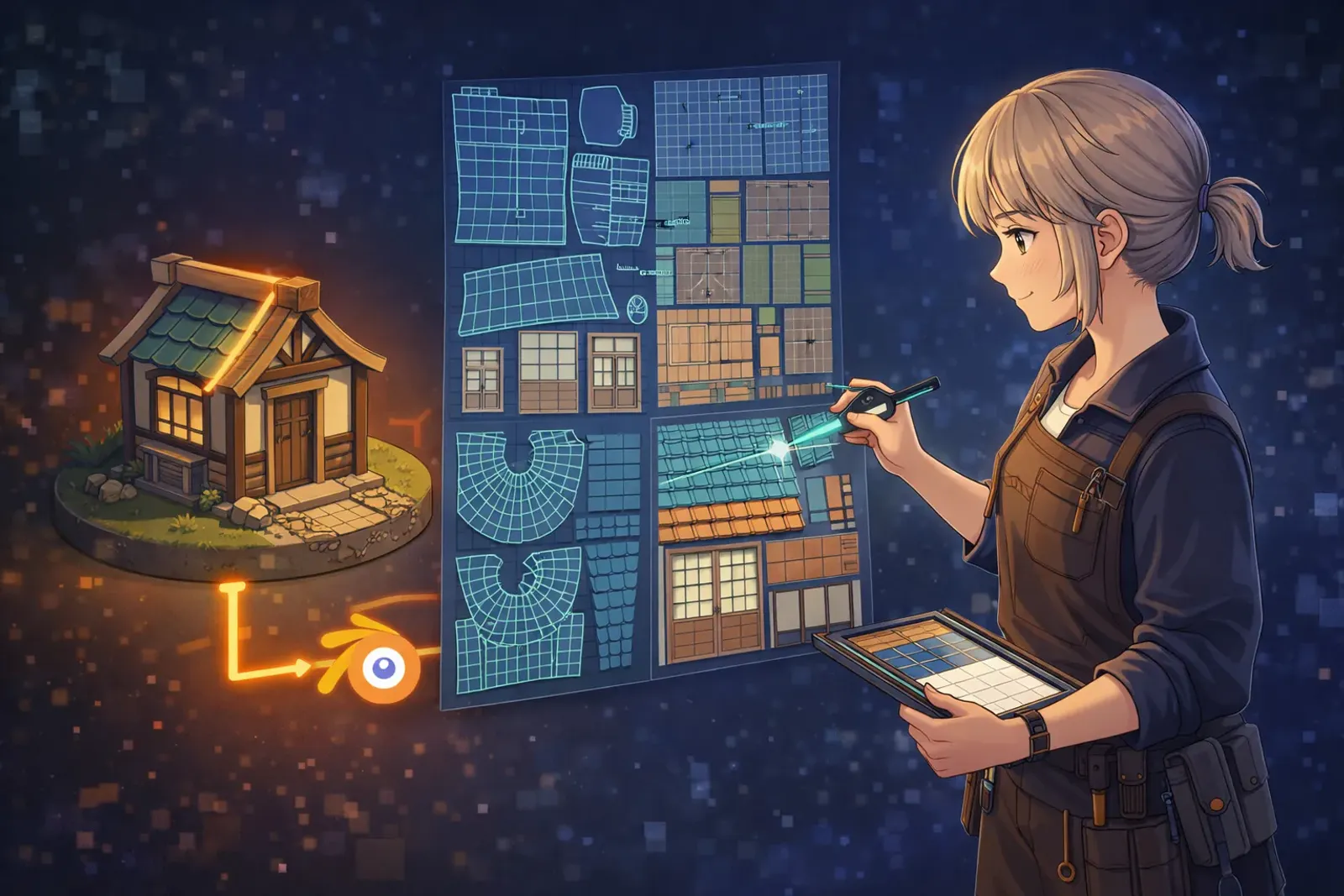
Blender UV Unwrapping Complete Beginner Guide
The Core Problem
A lot of Blender beginners get stuck at the same point: the model looks fine, but once a texture is applied, it stretches, distorts, or shows obvious seams. Usually this is not a modeling problem. It’s a UV workflow problem.
Most UV issues come from three causes:
- Seams are cut in the wrong places.
- UV islands are heavily stretched after unwrap.
- Islands are packed with insufficient margin, causing bleeding in baking or mipmaps.
Fix these three, and your texturing, normal baking, and material work become dramatically more stable.

The Solution
Use a repeatable UV baseline workflow:
- Plan seams in low-visibility areas first
- Unwrap and check stretch before packing
- Normalize texel density and use proper island margin
The goal is not a perfect unwrap in one click. The goal is reliable checkpoints that let us iterate quickly without guesswork.
Implementation Steps
Step 1: Prepare object state before UV work
Before unwrapping, always do:
Ctrl + A→ Apply Scale- Recalculate normals in Edit Mode (Outside)
If scale isn’t applied, UV proportion can behave inconsistently. If normals are incorrect, unwrap quality often drops.
Step 2: Mark seams with a “fabric pattern” mindset
Think of the mesh like cloth you need to flatten. You must decide where to cut.
Seam planning rules:
- Prefer back, bottom, or hidden regions
- Hard edges and material boundaries are good seam candidates
- Cylinders/arms/legs often need one longitudinal seam plus cap loops
- Avoid cutting through hero areas like face/logo/focal details
Actions:
- Select edges in Edit Mode
Ctrl + E→ Mark Seam- Enable seam overlays and verify continuity
Step 3: Unwrap and evaluate overall structure
- Select all faces (
A) U→ Unwrap- Check if island shapes make structural sense in UV Editor
At this stage, validate direction and structure first. Do not rush into packing.
Step 4: Check and fix stretching
Enable Stretch display in UV Editor (Angle or Area mode).
How to read it:
- More blue: low distortion
- More red: high distortion
Fix methods:
- Adjust seam layout and unwrap again
- Use
UV > Minimize Stretch - Apply local relax when needed instead of forcing full-island edits
Step 5: Normalize texel density
A common beginner issue is inconsistent sharpness across one model.
Process:
- Choose a hero area as baseline (e.g., face or weapon focal side)
- Scale other islands to comparable density
- Reduce density on low-importance parts to preserve quality where it matters
For game assets, this matters more than blindly increasing texture resolution.
Step 6: Pack islands with proper margin
Use UV > Pack Islands, and focus on:
- Rotation enabled for space efficiency
- Margin padding: at least 8-16 px for 2K textures
Too little margin is a major cause of seam bleeding after baking and distance filtering.
Step 7: Final validation with checker texture
Always test with a checker map:
- Are grid cells uniform in size?
- Is text distorted?
- Are seams located in acceptable regions?
If checker distortion remains, do not move on to material production yet.

Advanced Tips
Tip 1: Use auto methods as draft, not final
For hard-surface assets, start with Smart UV Project or Lightmap Pack, then manually refine important regions. Fast to start, but final quality still depends on manual control.
Tip 2: Mirror overlap strategy
For symmetrical characters, overlapping UVs can save texture space. But if left/right need unique wear, decals, or asymmetry, keep them separate.
Tip 3: Increase margin for baking-heavy pipelines
If you plan to bake AO, Normal, or Curvature maps, use larger margins and avoid placing islands too close to texture borders.
Real Example
Example: Fast UV workflow for a low-poly wooden crate
Goal: game-ready crate with 1K texture.
- Apply scale and verify normals.
- Mark seams on bottom/back to preserve clean front wood grain.
- Unwrap and fix red stretch zones.
- Normalize texel density, then pack with 8 px margin.
- Validate with checker before texturing.
This gives stable results whether you texture in Blender or Substance.
Common Issues
Q: I unwrapped, but texture still warps. Why?
A: Check applied scale first, then stretch view. Most issues come from unapplied transforms or poor seam logic.
Q: Seams are still visible. What should I do?
A: Move seams into low-visibility areas and increase margin. Use material breakup (grime, wear, normal detail) to reduce seam readability.
Q: Smart UV or manual seams?
A: Smart UV is good for fast drafts. For production assets, manual seams give better control and cleaner hero regions.
Q: Can UV islands overlap?
A: Yes, for mirrored or repeated parts. Avoid overlap on areas requiring unique details.
Q: What margin should I use for 2K?
A: Usually 8-16 px. If your pipeline includes multiple bakes and heavy mip usage, lean toward 16 px.
Key Takeaways
- Apply scale before UV to prevent proportion errors.
- Seam placement determines most unwrap quality.
- Stretch check is mandatory, not optional.
- Consistent texel density keeps texture sharpness balanced.
- Proper island margin prevents seam bleeding.
- Pass checker validation before entering material and baking stages.
Conclusion
UV unwrapping is not a minor cleanup step after modeling. It is the foundation of texture quality. Once seam planning, stretch checks, density normalization, and margin settings become a fixed workflow, UV work becomes predictable and efficient.
Stabilize the process first, then optimize speed. Better UVs will elevate every downstream step: materials, bakes, and in-engine results.
Related Resources:
-
Blender Official UV Unwrapping Documentation
- UV tools and workflow overview
-
Blender UV Editing Documentation
- Core UV editor operations
-
Blender UV Unwrapping Tutorials
- Practical beginner references
Tags: #Blender #UVUnwrapping #Texturing #3DModeling #GameAssets #Tutorial