Blender Scale Fix for Beginners: A Baseline Workflow
The Core Problem
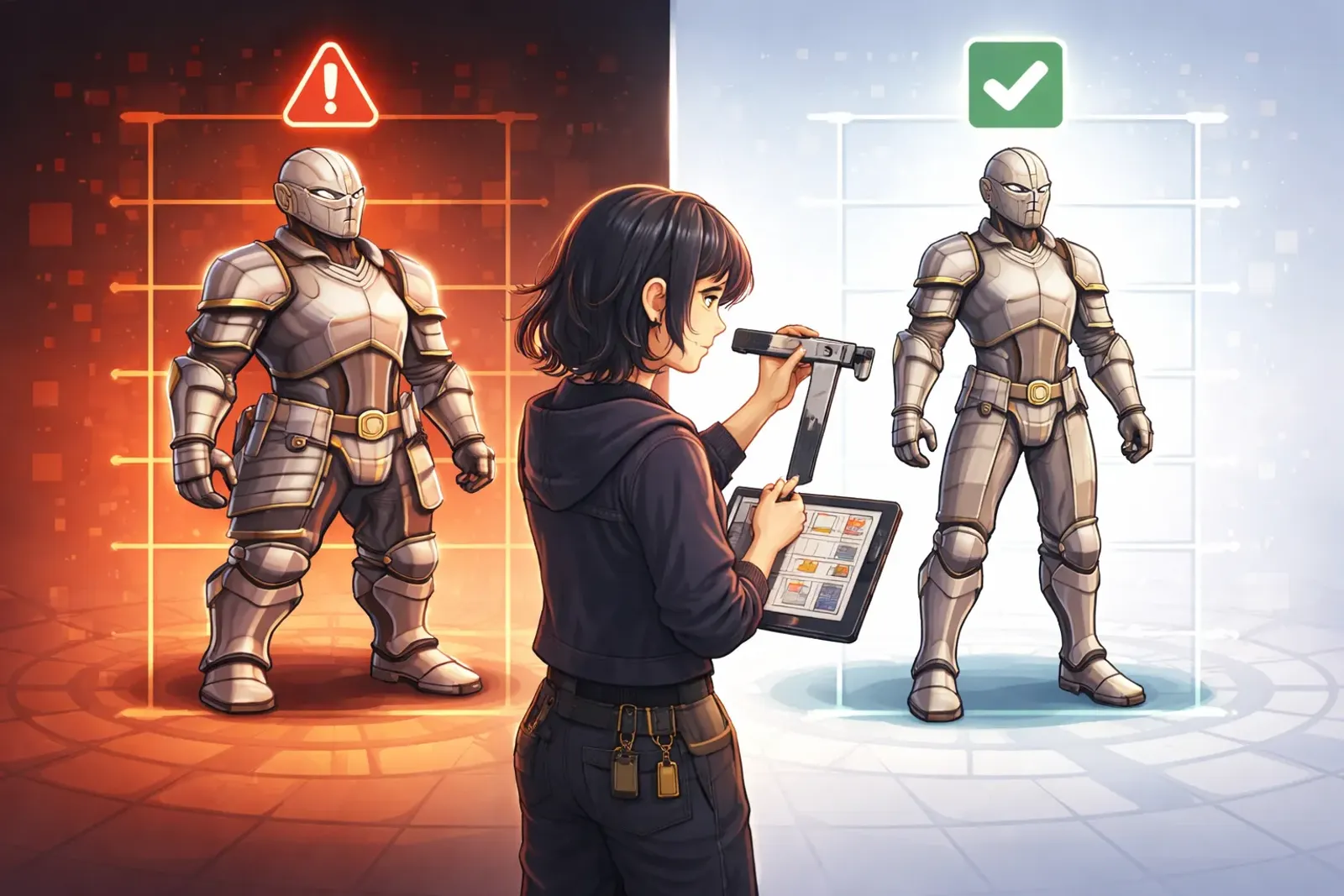
When we start making game assets, scale problems show up fast. A model looks fine in Blender, then ends up tiny in Unity or huge in Unreal. A sword that seemed right suddenly looks like a toothpick next to a character. The camera feels wrong, the environment feels off, and nothing quite fits together. This is frustrating, especially for beginners who are still learning the basics.
The most common cause is not modeling skill. It is the lack of a consistent scale baseline. Scale issues usually come from three places:
- Units are inconsistent: the scene is in meters, but export is interpreted as centimeters.
- No reference object: we have no fixed-size object to compare against.
- No size-check habit: we model by eye first, then try to fix proportions later.
For game assets, we need consistency more than anything. A stable baseline makes every new asset easier, because we stop guessing. The workflow below is built for beginners and focuses on one goal: make scale reliable from the first minute.
Scale is not just about visuals. It affects animation speed, physics, collisions, and even how materials read. A character that is 10% too tall can make doorways look wrong and cause mismatched hitboxes. Fixing those errors later is expensive.
The Solution
The Blender Scale Baseline Workflow has three simple pillars:
- Define units first so all numbers mean the same thing.
- Add reference objects so our eyes have a clear baseline.
- Check size early and often so we do not rely on guessing.
This is not about memorizing formulas. It is about building a repeatable routine. Once you do it once, you can reuse it for every project and every asset.
For game production, this baseline also keeps teams aligned. A prop artist, an environment artist, and an animator can all work from the same scale rules. That prevents late-stage surprises like doors that are too small for characters or props that float above the ground. Even if you are working solo, treating scale as a shared rule makes your library of assets fit together cleanly over time.
Implementation Steps
Step 1: Set the correct unit system

- Open Scene Properties.
- In the Units section, set:
- Unit System: Metric
- Length: Meters
- Unit Scale: 1.0
Why this matters: Most game pipelines interpret 1 Blender unit as 1 meter or 1 centimeter. Setting Metric + Unit Scale 1.0 keeps the relationship simple and predictable. For beginners, this is the clearest setup because the numbers you see match the real size you expect.
Optional but useful: adjust the grid scale and snapping so it matches your unit choice. A grid where each square equals 1 meter makes blocking out much faster.
Step 2: Add reference objects to lock the baseline
We recommend two reference objects for game assets:
- 1.8m human reference for character scale.
- 1m cube for a quick visual ruler.
How to set them up:
- Add a cube and set its dimensions to 1m × 1m × 1m.
- Add a simple human reference and set the height to 1.8m.
- Place both at the center of the scene and name them clearly, for example
Scale_Cube_1mandScale_Human_1p8m.
Why this matters: Our eyes judge proportion better than numbers. With references in view, we can immediately see if a door is too short or if a weapon feels oversized. This keeps our modeling decisions grounded in reality.
If you want extra clarity, add a few “benchmark” objects such as a 2m door frame or a 0.5m step height. These common sizes help your brain spot mistakes quickly.
Step 3: Calibrate size before modeling
Before serious modeling, we do two checks:
- Dimensions panel: In the
Itempanel, confirm the exact size of your object. - Measure tool: Use the ruler tool to measure important distances.
Build the habit of checking size after each major block-out piece. It saves time later because scale problems are easier to fix early than after detailing, UVs, or rigging.
Also remember to apply scale (Ctrl + A → Apply Scale) once you finalize the size of an object. This prevents unexpected scaling in exports or physics calculations.
Advanced Tips
Tip 1: Save a scale template as a startup file
Once you have the correct units and reference objects in place, save the file as your Blender startup file. From then on, every new project opens with the correct scale baseline.
Tip 2: Organize references in a locked collection
Place all reference objects inside a Scale_Reference collection and set it to visible but not selectable. This keeps the references visible without getting in the way of modeling.
Tip 3: Align with your game engine settings
If your engine uses centimeters (like Unreal) or meters (like Unity), decide the conversion once and stick to it. The key is consistency. When scale is stable in Blender, export scale becomes predictable and repeatable.
Tip 4: Create a quick scale checklist
Keep a short checklist near your workspace:
- Units = Metric, Scale = 1.0
- 1m cube visible
- 1.8m human visible
- Apply Scale before export
This tiny habit prevents most beginner mistakes.
Real Example
Example: A 2m character and a 1m weapon
Goal: Create a character that is exactly 2 meters tall and a weapon that is 1 meter long.
- Set the character height to 2m, using the human reference as a visual check.
- Set the weapon length to 1m, comparing it to the 1m cube.
- Place both in the same scene to confirm that the proportions feel natural.
- Export to your engine and verify that the scale remains consistent.
This simple test proves that your baseline works. Once it does, every future asset will fall into the correct scale without constant tweaking.
In practice, this also helps with animation and interaction. A 1m weapon will align correctly with a 2m character’s hand, and hitboxes line up without guesswork.
Common Issues
Q: My model becomes smaller after export. Why?
A: This usually happens when units do not match. Confirm that Unit Scale is 1.0 and that your export settings do not apply unexpected scaling.
Q: I already modeled everything. Do I still need to calibrate size?
A: Yes. If you correct scale now, apply the scale transforms before rigging or animation. It prevents later problems with movement and physics.
Q: Do I have to use meters?
A: Not necessarily. The most important rule is consistency. Pick one system and stick to it across all assets.
Q: Will reference objects affect export?
A: Not if you keep them in a separate collection and exclude them during export.
Q: I only make small props. Do I still need this workflow?
A: Yes. Props that align with characters and environments feel professional. Small errors in scale are obvious in games.
Q: Why does my grid feel too small or too large?
A: Your grid display is independent from units. Adjust grid scale and subdivision so that one major square equals 1 meter.
Key Takeaways
- Lock units early: Metric + Unit Scale 1.0 keeps numbers simple and consistent.
- Use reference objects: A 1m cube and 1.8m human give instant visual feedback.
- Check size often: Confirm dimensions after each major modeling step.
- Consistency beats guessing: A repeatable workflow saves hours later.
- Game assets stay reliable: Scale affects animation, collisions, and layout, so it must be stable.
Conclusion
For beginners, scale problems feel mysterious, but the fix is not complicated. What we need is a baseline workflow that makes size consistent from the very start. By defining units, adding reference objects, and building a habit of checking dimensions, we stop guessing and start building assets that fit naturally into a game world.
Once this baseline is in place, every new asset becomes easier. The character fits the environment, the weapon looks correct, and export is no longer a gamble. In short, the workflow removes scale as a source of stress and turns it into a reliable foundation we can trust.
Next time you open Blender, set the baseline first. When scale is right, everything else becomes simpler.
That small upfront step saves hours later, especially when you start building bigger scenes.
Related Resources:
-
Blender Scene and Unit Settings
- Official unit and scene setup documentation
-
Blender Measure Tool
- Measuring and size calibration reference
-
FBX Export Settings
- Export scaling and unit guidance
Tags: #Blender #Scale #GameAssets #Modeling #Workflow #Tutorial