How to Bake Normal Maps: Complete Workflow from High-poly to Low-poly
How to Bake Normal Maps: Complete Workflow from High-poly to Low-poly
What is Normal Map Baking?
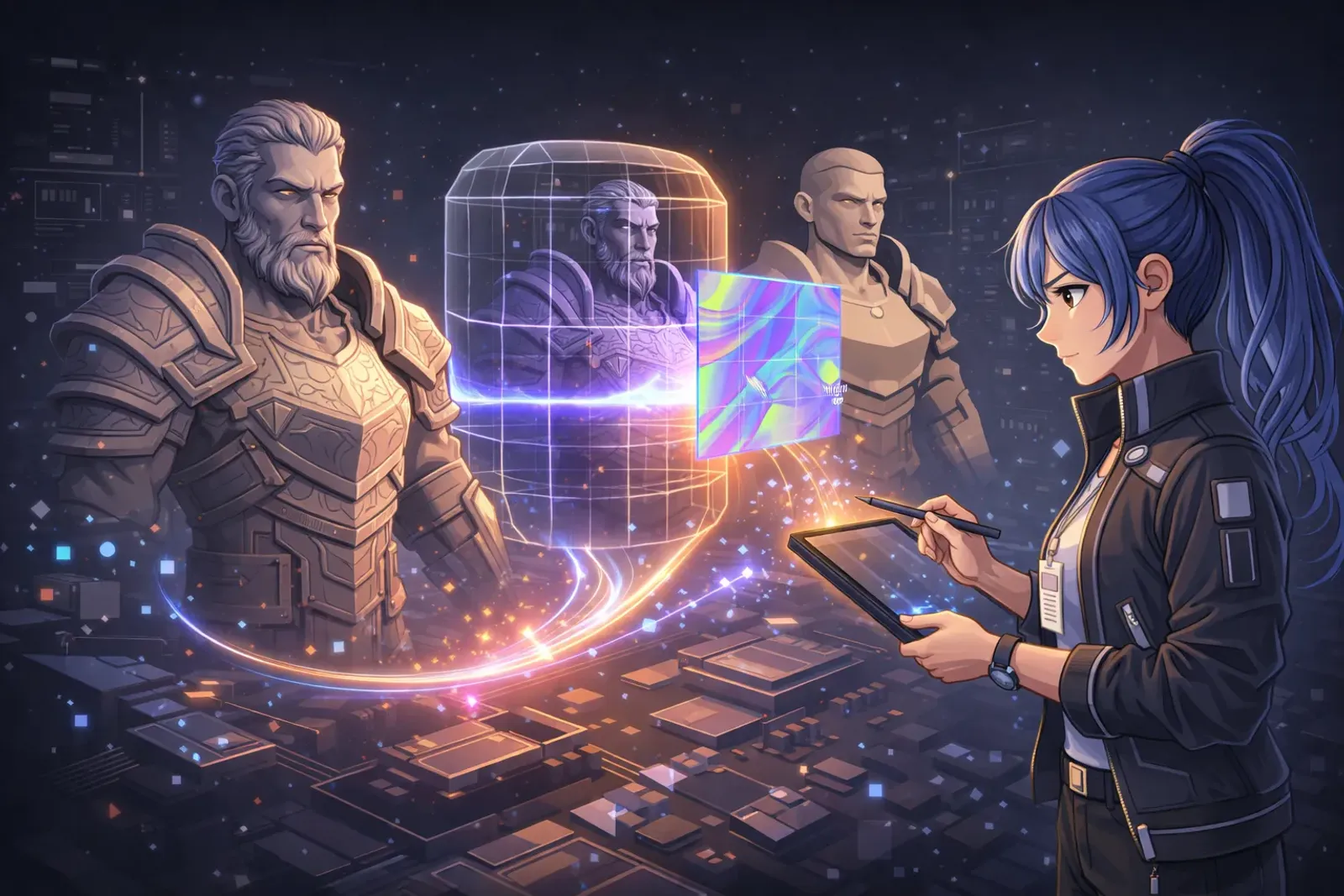
Normal map baking is the technique of converting surface detail from a high-polygon model into a normal map and applying it to a low-polygon model. This enables game assets to maintain visual detail while dramatically reducing polygon count, improving performance.
Core Concepts:
- High-poly (High-polygon): Millions of polygons, rich detail but unsuitable for real-time rendering
- Low-poly (Low-polygon): Few thousand polygons, game-ready but lacking detail
- Normal map: Texture storing high-poly details, applied to low-poly to simulate detail

Pre-Baking Preparation
1. Prepare High-poly and Low-poly Models
High-poly Recommendations:
Use Subdivision Surface or Multiresolution Modifier to create detail, or import from sculpting software like ZBrush. Ensure the high-poly represents your desired final visual result, with clean geometry and no broken faces.
Low-poly Topology:
Keep polygon count within 5k-15k range, maintain clean quad topology with logical edge flow. Can use manual retopology, Decimate Modifier, or retopology tools. Low-poly silhouette should approximate high-poly, with flat areas kept minimal.
2. UV Unwrapping
UV quality directly impacts baking results. Place seams in inconspicuous areas (bottom, back), avoid stretching or compression, maximize 0-1 UV space, and allocate more area to important regions.
Check Steps:
1. UV Editing workspace - check overlaps (Select → Overlap)
2. Check stretching (Display Stretch)
3. Arrange islands to maximize space utilization
3. Naming Conventions
Character_HighPoly  (High-poly)
Character_LowPoly   (Low-poly)
Character_Normal    (Baked normal map)
Blender Normal Baking Steps
1. Scene Setup
Ensure high-poly and low-poly are at the same location (origins aligned), with models overlapping or very close. Both models’ scales must be Applied (Ctrl + A → Scale). Any model displacement or unapplied transforms will cause baking to fail.
2. Material Node Setup
Low-poly needs a material to receive the baked texture:
1. Select low-poly → Shading workspace
2. Add Image Texture node (Shift + A → Texture → Image Texture)
3. Click New to create new texture
   - Name: Character_Normal
   - Width/Height: 2048x2048 (or 4096)
4. Node doesn't need to connect output, but must be selected (yellow border)
3. Baking Settings and Execution
Selection Order: Select high-poly first (Shift multi-select), then select low-poly last (active object)
Render Properties → Bake Settings:
Bake Type: Normal
✅ Selected to Active

Ray Distance (Light Ray Distance)
- Extrusion: 0.01-0.1
- Max Ray Distance: 0.1-1.0

Output
- Margin: 16px (edge padding to prevent seams)
- ✅ Clear Image
Click Bake to start, wait for progress bar to complete.
4. Save and Apply
Save Normal Map:
UV Editing workspace → Image → Save As → Select PNG format
Test Effect:
1. Set Image Texture node to Non-Color (important!)
2. Connect to Normal Map node
3. Normal Map connects to Principled BSDF Normal
4. Switch to Material Preview to view effect
Common Issues & Troubleshooting
Black or Strange Colors in Results
Cause: High-poly and low-poly too far apart or incorrect Ray Distance settings
Solution: Confirm model alignment, increase Max Ray Distance, adjust Extrusion value
Blurry or Missing Details
Cause: Texture resolution too low or severe UV stretching
Solution: Increase resolution (2048 → 4096), re-unwrap UVs to reduce stretching
Visible Lines at UV Seams
Cause: Margin too small or UV islands too close
Solution: Increase Margin to 16-32px, leave sufficient gaps between UV islands
Advanced Techniques
Cage (Baking Cage)
Duplicate low-poly and slightly enlarge it as a Cage. Enable Cage in Bake settings and select this object to precisely control light ray projection direction and high-poly detail capture range.
Texture Resolution Recommendations
| Purpose | Resolution |
|---|---|
| Main character/Important props | 4096x4096 |
| General characters | 2048x2048 |
| Small props | 1024x1024 |
| Background objects | 512x512 |
Export to Game Engines
Unity: After importing, set Texture Type to Normal Map in Inspector
Unreal Engine: Set Compression Settings to Normal Map, disable sRGB
Workflow Checklist
Before Baking: High-poly detail complete, low-poly topology reasonable, UVs without overlaps, models aligned with scale Applied
During Baking: Correct selection order (high-poly→low-poly), Image Texture node created and selected, Ray Distance and Margin set appropriately
After Baking: Normal map saved as PNG, effect tested in Blender, exported to game engine and verified
Conclusion
Normal map baking is a core technique in modern game development. Preparation determines 80% of success, UV quality directly affects results, and Ray Distance needs model-specific adjustment. Start with simple models to practice the complete workflow, then progress to complex assets. Record encountered problems and solutions each time, gradually building best practices.
Related Resources: