Krita Complete Beginner's Guide: Free Professional Digital Painting Tool, Master in 30 Minutes
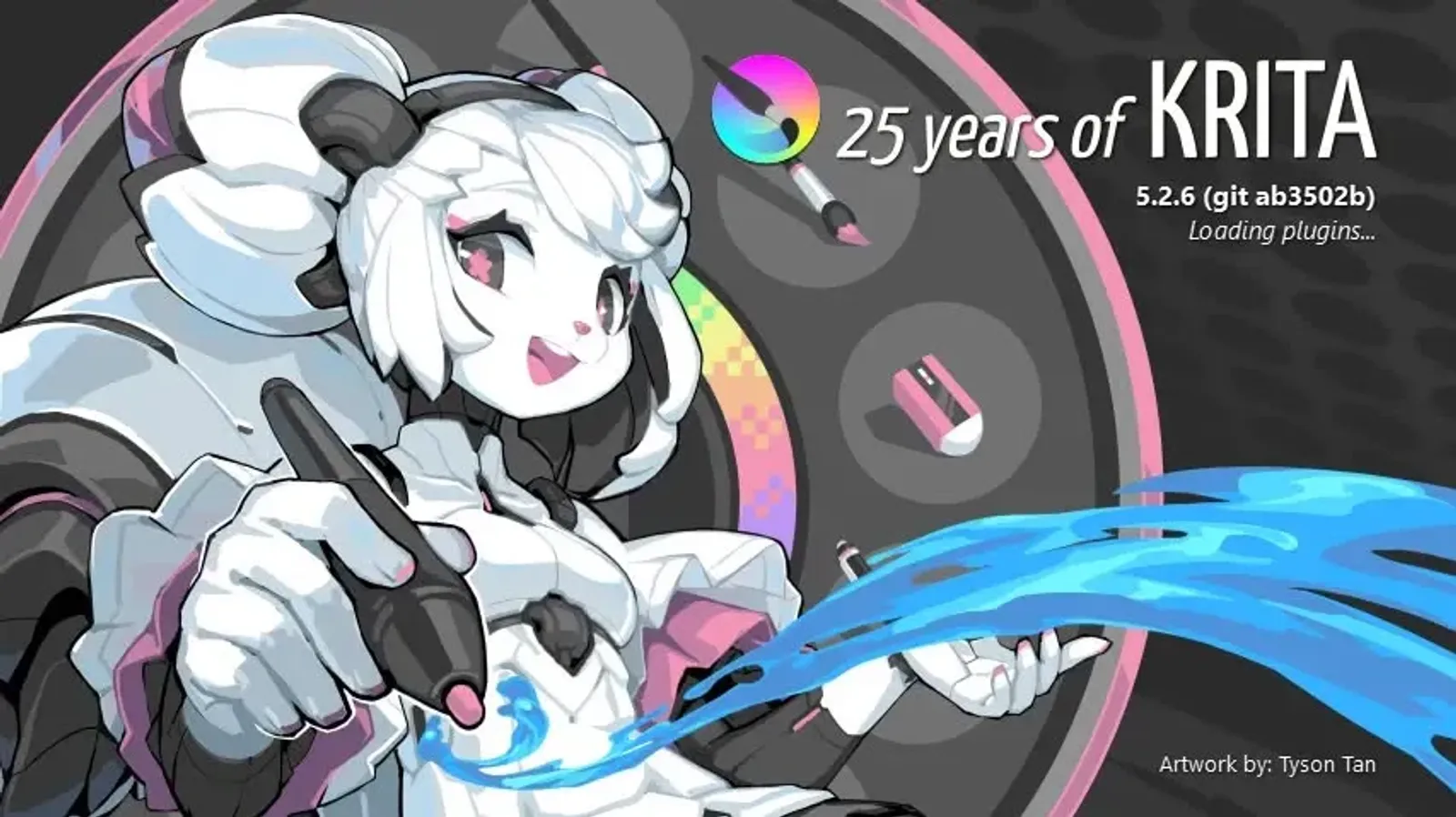
Krita Complete Beginner’s Guide: Free Professional Digital Painting Tool, Master in 30 Minutes
Why Choose Krita?
Krita is completely free professional painting software with features rivaling Photoshop, designed specifically for digital painting.
Core Advantages:
- ✅ Completely free (no watermarks, no feature limitations)
- ✅ Professional-grade features (layers, brush engines, color management)
- ✅ Cross-platform support (Windows, Mac, Linux)
- ✅ Full Chinese interface
Suitable for: Illustration beginners, game artists, manga creators
Not suitable for: Photo editing, vector design, 3D modeling

Quick Start
Download and Install
Download: krita.org (approx. 200MB)
First setup:
- Language selection → Traditional Chinese (or English)
- Workspace layout → Painting (recommended for beginners)
- Brush presets → Keep defaults
Hardware recommendations: 4GB RAM, drawing tablet not required but recommended
Interface Overview
5 Main Areas:
- Toolbar (left): Brush (B), Eraser (E), Fill (F), Select (Ctrl+R)
- Brush presets (top right): Sketch, ink, watercolor categories
- Color palette (middle right): Color wheel selector + saved colors
- Layers panel (bottom right): Layer management, blend modes
- Canvas (center): Creation area
Key operations:
- Pan canvas: Spacebar + drag
- Zoom: Ctrl + scroll
- Rotate: Shift + Spacebar + drag
- Reset rotation: Press 5
Core Functions
1. New Canvas
Recommended settings:
- Size: 1920x1080
- Resolution: 150 DPI (72 for web, 300 for print)
- Background: White
2. Recommended Brushes
Basic-5 Size: Sketching, lineart (pressure sensitive)
Ink-7 Brush Rough: Inking, outlines (sharp edges)
Fill_block: Flat coloring (opaque uniform)
Adjust size: [ smaller, ] larger
Color picker: Ctrl + click canvas
3. Layer System
Concept: Like transparent paper stacked together, each layer edits independently
Basic operations:
- Add: Insert key
- Rename: Double-click layer name
- Adjust order: Drag up/down
- Adjust opacity: Opacity slider
- Hide/show: Eye icon
Workflow: Sketch layer (30% opacity) → Lineart layer → Color layer
4. Selection and Fill
Selection tools:
- Rectangle select (Ctrl+R): Select squares
- Polygonal lasso (Shift+E): Irregular shapes
- Magic wand: Click similar color areas
Fill: Select then press Shift+Backspace
Deselect: Ctrl+Shift+A
Useful Tips
Essential Shortcuts
Tools: B (brush), E (eraser), K (color picker), M (mirror)
Layers: Insert (add), Ctrl+G (group), Ctrl+E (merge)
Edit: Ctrl+Z (undo), Ctrl+T (transform), Ctrl+A (select all)
Symmetry Drawing
Tools → Mirror tool (M) → Choose vertical/horizontal symmetry
Uses: Character faces, mandala patterns
Brush Stabilizer
F5 → Stabilizer → Basic smoothing
Recommended values: Sketch 10-20, lineart 50-70
Reference Images
Tools → Reference Images tool → Drag image to canvas
Doesn’t affect drawing, can move and scale
Practical Case: Draw Smiley Icon (15 Minutes)
Steps:
- New: 512x512, 72 DPI, transparent background
- Sketch: Basic-5 brush draw circle + eyes + smile
- Lineart: New layer, Ink-7 trace (sketch reduced to 30% opacity)
- Color: New layer below, magic wand select → fill yellow
- Finish: Hide sketch layer, export PNG

FAQ
Q: Brush has no pressure?
A: Install tablet driver → Settings → Configure Krita → Tablet settings
Q: Can’t reset canvas?
A: Ctrl+0 (reset zoom), 5 (reset rotation), Home (reset all)
Q: Software lagging?
A: Lower resolution, merge layers (Ctrl+E), increase memory limit
Q: Can import Photoshop brushes?
A: Yes! Settings → Manage Resources → Import .abr files
Q: File format?
A: Use .kra for working files (preserves layers), PNG for sharing (transparency)
Conclusion
Krita 30-minute essentials:
- Download and install (completely free)
- Understand interface (5 main areas)
- Learn brushes, layers, filling
- Memorize common shortcuts
- Practice hands-on
Next steps: Advanced brush settings, layer blend modes, animation features
Most important: Tools are just aids, what matters is practice. Krita is professional-grade, free doesn’t mean amateur.
Open Krita now and create your first artwork!
Resources:
Tags: #Krita #DigitalPainting #FreeSoftware #IllustrationTutorial #BeginnerGuide #Tutorial
- PSD: Compatible with Photoshop (may have compatibility issues)
Recommended workflow:
- Save
.krawhile drawing - Export PNG when finished
Key Takeaways
Krita 30-minute starter essentials:
- ✅ Download install - Completely free, official site
- ✅ Know interface - Toolbar, brushes, palette, layers, canvas
- ✅ New canvas - Choose right size and resolution
- ✅ Pick brush draw - Basic-5 (sketch), Ink-7 (line), Fill_block (color)
- ✅ Use layers - Sketch, linework, color layers separate
- ✅ Select fill - Rectangle select + fill tool
- ✅ Learn shortcuts - B (brush), E (eraser), spacebar (move canvas)
- ✅ Practice - Draw a simple icon
What to learn next?
- Advanced brush settings (custom pressure, textures)
- Layer blend modes (overlay, multiply)
- Masks and selection (precise selection, feathering)
- Animation features (simple 2D animation)
Most important:
Krita has many features, but you don’t need to learn everything at once.
Start with basic features to draw a few images, then gradually explore advanced functions.
Tools don’t matter, what matters is how much you draw.
Free doesn’t mean amateur, Krita is already professional-grade.
Open Krita now and create your first artwork!
Conclusion
Krita breaks the myth that “professional tools = expensive”.
It proves: Open-source and free can produce professional-grade work.
Three tips for beginners:
- Don’t fear trying - Software is free, explore freely
- Draw more practice more - Tools are just aids, skill comes from practice
- Use community - Join Krita community, see how others use it
For experienced artists:
If you’re used to Photoshop/Clip Studio, consider Krita as backup option:
- Use when traveling (free, cross-platform)
- Specific features (like animation, symmetry drawing)
- Open-source projects (avoid licensing issues)
Finally:
Good work isn’t from expensive tools, but your creativity and technique.
Krita gives everyone an equal starting point.
Next, it’s up to you what you draw.
Related Resources:
- Krita Official Site - Free download latest version
- Krita Official Docs - Complete English tutorial documentation
- Krita Official YouTube - Official tutorial videos
- Krita Artists Community - Artwork sharing and discussion
- Krita Reddit - International community exchange
Tags: #Krita #DigitalPainting #FreeSoftware #IllustrationTutorial #BeginnerGuide #Tutorial