Blender Grease Pencil Quick Start: Learn 2D Drawing & Animation in 30 Minutes
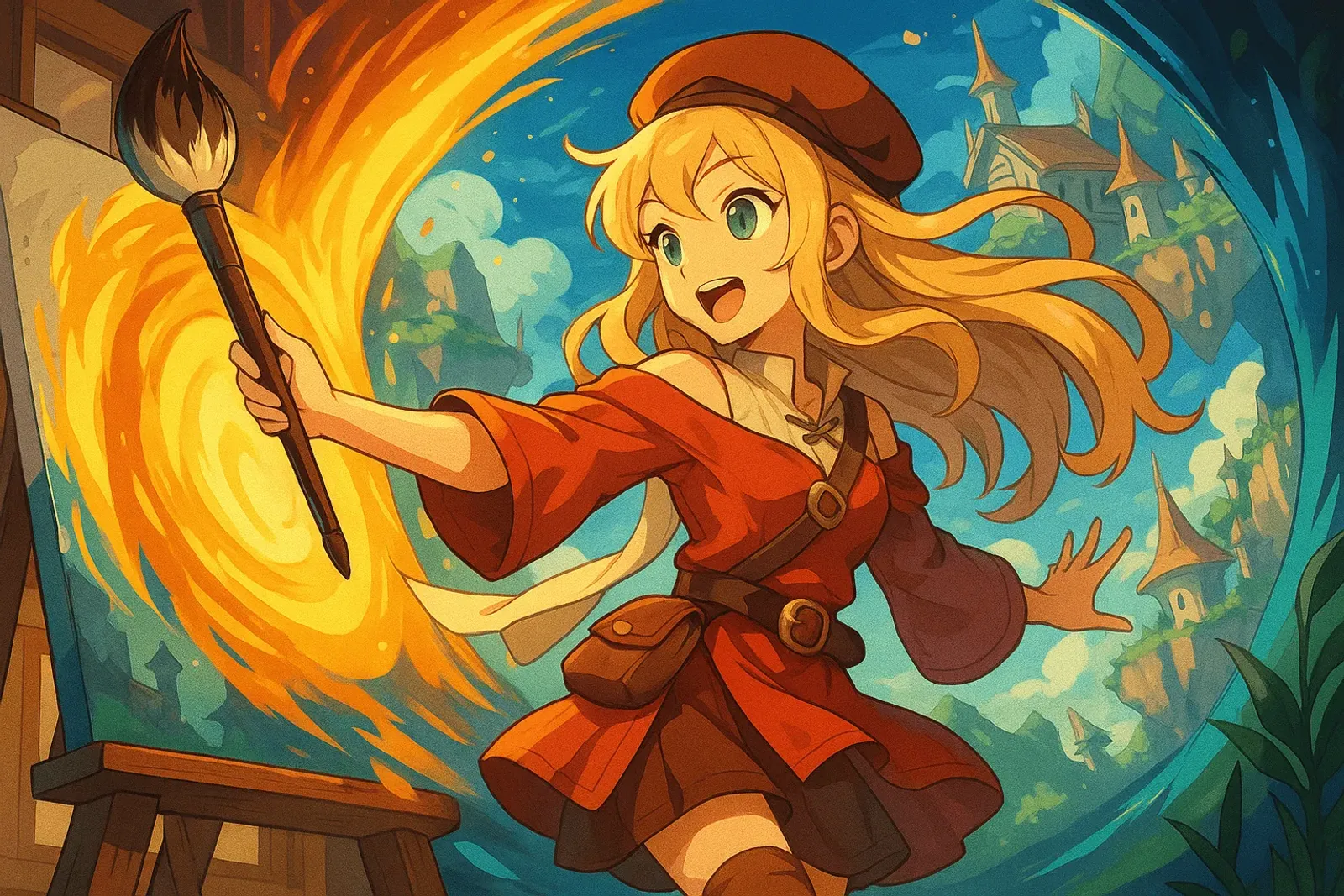
Blender Grease Pencil Quick Start: Learn 2D Drawing & Animation in 30 Minutes
Core Problem
Want to learn 2D animation or hand-drawn game assets, but professional software costs thousands?
Blender Grease Pencil is completely free and powerful.
Solution: 30-Minute Quick Start
This article teaches you in minimal time:
✅ Basic Drawing - First drawing in 5 minutes ✅ Simple Animation - Animated work in 10 minutes ✅ Practical Tips - Start creating immediately
No prior experience needed, just follow along!

Quick Setup: 3 Steps
1. Download Blender
Visit Blender Official Site for free download (recommend 5.0+).
Installation is simple, just double-click the installer. Completely free, no registration needed.
2. Open 2D Animation Workspace
Open Blender → Startup screen select “2D Animation” → Interface auto-switches to 2D layout.
3. Know the Interface
Left Toolbar:
- ✏️ Draw(D) - Drawing
- ⬜ Fill(Shift+F) - Fill colors
- 🧹 Erase(E) - Eraser
Right Panel:
- Layer management
- Color settings
Bottom Timeline:
- For animation
Controls:
- Middle mouse = Rotate view
- Scroll wheel = Zoom
First Drawing: Circle and Fill (5 Minutes)
Step 1: Draw Lines
- Press
Dto switch to Draw tool - Drag mouse on canvas → Draw circle
- Hold
Shiftfor straight lines
Step 2: Fill Color
- Press
Shift + Fto switch to Fill tool - Select color on right panel
- Click inside circle → Filled!
If won’t fill = Lines not closed, use Eraser(E) to fix.
Congratulations! First artwork done! 🎉

First Animation: Bouncing Ball (10 Minutes)
Animation Principles
2D animation = Draw one image per frame, fast playback creates motion.
We’ll make a 12-frame simple loop.
Step 1: Frame 1 (Ball at Top)
- Draw and fill a circle
- Press
Ito insert keyframe (red dot appears on timeline)
Step 2: Frame 6 (Ball at Bottom)
- Drag timeline to frame 6
- Press
Tabto enter Edit mode - Press
Ato select all - Press
Gto move ball down - Press
Ito insert keyframe
Step 3: Frame 12 (Ball Back to Top)
- Drag timeline to frame 12
- Move ball back near frame 1 position
- Press
Ito insert keyframe
Step 4: Play!
Press Spacebar → Watch ball bounce!
Onion Skin: Click onion icon above timeline → See semi-transparent adjacent frames → Helps adjust motion.
Practical Tips
Essential Shortcuts
D - Draw tool
E - Eraser
Tab - Toggle Edit/Object mode
G - Move
I - Insert keyframe
A - Select all
Ctrl + Z - Undo
Spacebar - Play animation
Layer Usage
Right panel → Layer management:
- Click
+to add layer - Eye icon = Hide/show
- Suggested layers: Sketch → Line → Color
Symmetry Drawing
Top toolbar → Symmetry icon → Draw one side, auto-copies the other.
Perfect for faces or symmetric patterns!
Common Problems
Q: Lines look rough? Slow down drawing speed, enable brush Smoothing option.
Q: Color won’t fill? Ensure lines fully closed, use eraser to fix gaps.
Q: Animation laggy? Lower canvas resolution, simplify details.
Q: Accidentally deleted?
Ctrl + Z to undo.
Next Steps
Practice Suggestions
- Week 1: Draw 10 simple shapes daily, familiarize with tools
- Week 2: Draw 3-5 simple characters, practice layers
- Week 3: Make 5-second loop animation
- Week 4: Do small project to share
Learning Resources
- Blender Official Docs
- Official YouTube Tutorials
- Search “Blender Grease Pencil” for more tutorials
Key Takeaways
You’ve learned:
✅ Install & setup Blender ✅ Basic drawing & filling ✅ Create simple animations ✅ Common shortcuts
Most important:
Don’t fear drawing poorly, just start practicing!
Blender Grease Pencil is completely free, only cost is your time.
Open Blender now and start creating! 🎨
Related Resources:
- Blender Official Download - Free download
- Grease Pencil Docs - Complete documentation
- Blender Artists Community - Discussion & questions
Tags: #Blender #GreasePencil #2DAnimation #DrawingTutorial #AnimationProduction #Tutorial